Part 2 : WordPress :: xmlrpc.php Attack!

This is in continuation to the post which I missed adding.

To block xmlrpc.php attacks we have been using CSF firewall with custom rules as explained below :

nano -w /etc/csf/csf.conf

Replace

CUSTOM1_LOG = "/var/log/customlog"

with bellow :

CUSTOM1_LOG = "/usr/local/apache/domlogs/*/*"

add below custom script to

nano -w /usr/local/csf/bin/regex.custom.pm
# Block IP if more than 10 requests in 3600 for wp-login
if (($globlogs{CUSTOM1_LOG}{$lgfile}) and ($line =~ /(\S+).*] "\w*(?:GET|POST) \/wp-login\.php.*" /)) {
return ("WP Login Attack",$1,"WPLOGIN","10","80,443","1");
}

# Block IP if more than 10 requests in 3600 for xml-rpc
if (($globlogs{CUSTOM1_LOG}{$lgfile}) and ($line =~ /(\S+).*] "\w*(?:GET|POST) \/xmlrpc\.php.*" /)) {
return ("WP XMLPRC Attack",$1,"XMLRPC","10","80,443","1");
}

restart csf / lfd :

csf -r
service lfd restart

You will start seeing logs as below :

 server02 lfd[3737725]: (WPLOGIN) WP Login Attack X.X.X.X (US/United States/-): 10 in the last 3600 secs - Blocked in csf [LF_CUSTOMTRIGGER]

Reset Windows Administrator Password KVM – Virtualizor

Warning: Make sure to create VM backup before proceeding further

1. Stop the VPS from Virtualizor.

2. Connect to Slave via SSH

3. Find the path to the VPS disk:


root@-40:~# virsh list
 Id   Name     State
------------------------
 11   v21916   running

root@-40:~# virsh domblklist  11
 Target   Source
---------------------------------------------------------------------
 vda      /dev/ubuntu-vg/vsv21916-dyqrIg5RKjwcLFYX-hkOWDXfTDIzhZ30B

root@-40:~#

4. Run a filesystem check on the main partition:

root@-40:~# kpartx -a -v /dev/ubuntu-vg/vsv21916-dyqrIg5RKjwcLFYX-hkOWDXfTDIzhZ30B

add map ubuntu--vg-vsv21916--dyqrIg5RKjwcLFYX--hkOWDXfTDIzhZ30B1 (253:5): 0 628019200 linear 253:1 1126400


root@-40:~# ntfsfix /dev/mapper/ubuntu--vg-vsv21916--dyqrIg5RKjwcLFYX--hkOWDXfTDIzhZ30B1 

Mounting volume... The disk contains an unclean file system (0, 0).
Metadata kept in Windows cache, refused to mount.
FAILED
Attempting to correct errors... 
Processing $MFT and $MFTMirr...
Reading $MFT... OK
Reading $MFTMirr... OK
Comparing $MFTMirr to $MFT... OK
Processing of $MFT and $MFTMirr completed successfully.
Setting required flags on partition... OK
Going to empty the journal ($LogFile)... OK
Checking the alternate boot sector... OK
NTFS volume version is 3.1.
NTFS partition /dev/mapper/ubuntu--vg-vsv21916--dyqrIg5RKjwcLFYX--hkOWDXfTDIzhZ30B1 was processed successfully.


root@-40:~# kpartx -d /dev/ubuntu-vg/vsv21916-dyqrIg5RKjwcLFYX-hkOWDXfTDIzhZ30B
root@-40:~# 

5. Mount the disk and replace binary Utilman.exe with cmd.exe

root@-40:~# mkdir /mnt_tmp/

root@-40:~# guestmount  -a /dev/ubuntu-vg/vsv21916-dyqrIg5RKjwcLFYX-hkOWDXfTDIzhZ30B -i --rw /mnt_tmp/

root@-40:~# cp -a   /mnt_tmp/Windows/System32/Utilman.exe /mnt_tmp/Windows/System32/Utilman.old

root@-40:~# cp -a   /mnt_tmp/Windows/System32/cmd.exe  /mnt_tmp/Windows/System32/Utilman.exe

root@-40:~# umount /mnt_tmp/
root@-40:~#  

6. Start the VPS.
7. On the login screen (where you need to type the password), press Win + U or click the Ease of Access icon. This will open the command prompt instead of the Ease of Access tools.
8. Execute the command:

net user Administrator new_password

replace new_password with your value.

9. Close the terminal and login into the system using the new password.

Once you confirm the new password is applied revert the changes done to files.
cPanel :: Change nameservers for all zone files using command line

Sometimes in cases like migration its needed to change the nameservers for all sites / zones to newer ones. Here the cPanel does not provide any option to do so.

Here is way we can do it by command line :

First and most important backup the Zone files :

cp -r /var/named /var/named.backup

Using below you can replace the nameservers under all zone files :

sed -i 's/ns1.old.com/ns1.new.com/g' /var/named/*.db

OR

replace   "ns1.old.com"  "ns1.new.com" -- /var/named/*.db

Now its necessary to update the serials under each zone files to make the changes take effect.

find /var/named/*.db -mtime -1 -exec perl -pi -e 'if (/^\s+(\d{10})\s+;\s+serial/i) { my $i = $1+1; s/$1/$i/;}' '{}' \;

Check the DNS service first :

systemctl status pdns

Now restart the service to load the changes :

systemctl restart pdns

Make sure to update the new nameservers under Basic Settings too.

Finally you need to update nameserver IP’s under cpanel using below command :

/scripts/updatenameserverips

WHM Logins shows error :: plugin error - Analytics: plugin not found

New error has been seen while login to WHM :

plugin error – Analytics: plugin not found

Error logs shows no error.

Here is the fix :

rpm -e --nodeps --justdb cpanel-analytics

yum --disablerepo="*" --enablerepo="cpanel-plugins" install cpanel-analytics

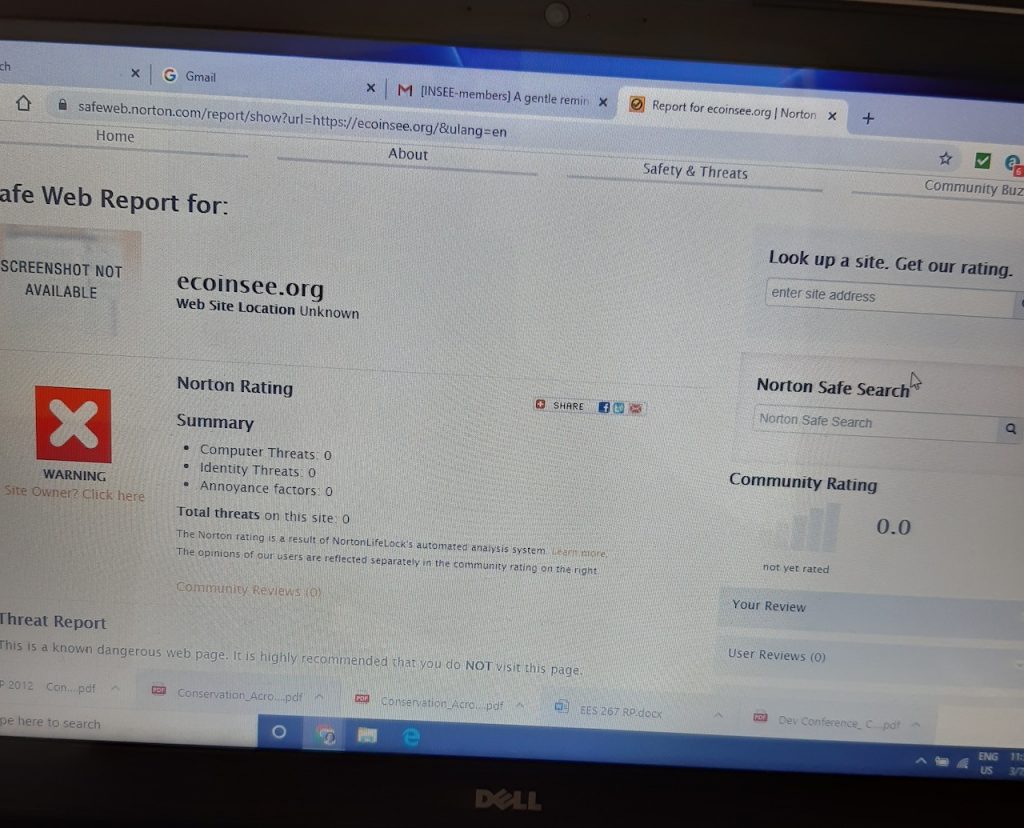
Norton blacklisted my website and it is CLEAN!

Norton for a long time used to show clients site as blacklisted, I registered for https://safeweb.norton.com/ and sent a review request........ days passed by with no reply.
Scanned site at sitecheck.sucuri.net which too showed clean but blacklisted at Norton.  
Later found a quick solution on Norton forums :

Submit category change request with WebPulse:

https://sitereview.symantec.com/#/

 Please enter a valid URL for the review process -
> valid URL for review -
https://ecoinsee.org/
> Filtering Service - select 'Norton Safe Web'-
> Your suggested category - 'Select a Category'-
> Comments - add 'Safe Web Orange Caution with 0 Threats'-


After few hours I see the site now clean.


https://safeweb.norton.com/report/show?url=ecoinsee.org

CentOS 7 :: /var/log/messages , cron , secure log files empty

Today I found a cPanel CentOS 7 server with empty log files :

-rw------- 1 root root 0 Aug 18 05:57 cron
-rw------- 1 root root 0 Aug 18 05:57 maillog
-rw------- 1 root root 0 Aug 18 05:57 messages
-rw------- 1 root root 0 Aug 18 05:57 secure

Found a quick solution :

rm -f /var/lib/rsyslog/imjournal.state

service rsyslog restart

Server reboot and service restarts did not help however the above worked..

Voila the logs started working…….

Plesk Onyx 17.8 :: Backup Error :: Errcode: 24 – Too many open files

A recently setup Plesk on CentOS 7 Server was showing errors under Backup manager :

Unable to execute SQL: Out of resources when opening file '/tmp/#sql_5226_0.MYI' (Errcode: 24 - Too many open files). SQL query: SHOW FULL COLUMNS IN `catalogindex_minimal_price`

The MySQL configured was default and showed limits as below :

mysql> show global variables like 'open%';
+------------------+-------+
| Variable_name    | Value |
+------------------+-------+
| open_files_limit | 1000  |
+------------------+-------+
1 row in set (0.00 sec)

mysql>

To raise the limits I had to create a directory and create a configuration file as below :

cd  /usr/lib/systemd/system
mkdir mysql.service.d
cd mysql.service.d/
nano -w override.conf


# cat override.conf
[Service]
LimitNOFILE=5000
#
systemctl daemon-reload
service mysqld restart

Once this was applied the Backups worked fine. You may raise the limits as required.


Parallels Guest Tool Install Error :: FATAL: modpost: GPL-incompatible module prl_eth.ko uses GPL-only symbol ‘sev_enable_key’

Today faced a issue with Virtuozzo 6 Guest tool install. Got below error while installing guest tools for CentOS.

Start installation or upgrade of Guest Tools
new version of virtuozzo tools
Installed Guest Tools were not found
Perform installation into the /usr/lib/parallels-tools directory
cat: /usr/lib/parallels-tools/kmods/../version: No such file or directory
Start installation of prl_eth kernel module
make: Entering directory `/usr/lib/parallels-tools/kmods'
cd prl_eth/pvmnet && make
make[1]: Entering directory `/usr/lib/parallels-tools/kmods/prl_eth/pvmnet'
make -C /lib/modules/3.10.0-957.1.3.el7.x86_64/build M=/usr/lib/parallels-tools/kmods/prl_eth/pvmnet
make[2]: Entering directory `/usr/src/kernels/3.10.0-957.1.3.el7.x86_64'
LD /usr/lib/parallels-tools/kmods/prl_eth/pvmnet/built-in.o
CC [M] /usr/lib/parallels-tools/kmods/prl_eth/pvmnet/pvmnet.o
LD [M] /usr/lib/parallels-tools/kmods/prl_eth/pvmnet/prl_eth.o
Building modules, stage 2.
MODPOST 1 modules
FATAL: modpost: GPL-incompatible module prl_eth.ko uses GPL-only symbol 'sev_enable_key'
make[3]: *** [__modpost] Error 1
make[2]: *** [modules] Error 2
make[2]: Leaving directory `/usr/src/kernels/3.10.0-957.1.3.el7.x86_64'
make[1]: *** [all] Error 2
make[1]: Leaving directory `/usr/lib/parallels-tools/kmods/prl_eth/pvmnet'
make: *** [installme] Error 2
make: Leaving directory `/usr/lib/parallels-tools/kmods'
Error: could not build kernel modules
Error: failed to install kernel modules
Error during report about failed installation of virtuozzo tools.

Found a fix that works at https://gist.github.com/rudolfratusinski/a4d9e3caff11a4d9d81d2e84abc9afbf

I used below steps :

Rsync used to make sure permissions are intact :

rsync -avz /mnt/cdrom /root/

Extract files to edit :
cd /root/cdrom/kmods/
tar -xzf prl_mod.tar.gz

Edit first File

nano -w /root/cdrom/kmods/prl_eth/pvmnet/pvmnet.c

Change below :

MODULE_LICENSE("Parallels");

to

MODULE_LICENSE("GPL");

Edit Second File

nano -w /root/cdrom/kmods/prl_tg/Toolgate/Guest/Linux/prl_tg/prltg.c

Change below :

MODULE_LICENSE("Parallels");

to

MODULE_LICENSE("GPL");

Once the 2 files are saved zip back the files.

cd /root/cdrom/kmods/
tar -zcvf prl_mod.tar.gz . dkms.conf Makefile.kmods

Now try the install which should complete without error

cd /root/cdrom/
./install

OpenVZ 7 Upgrade Error !

While upgrading OpenVZ server I got an error as below :

====
--> Finished Dependency Resolution
Error: Package: 10:qemu-kvm-vz-2.9.0-16.3.vz7.8.x86_64 (factory)
Requires: libspice-server.so.1(SPICE_SERVER_0.12.5)(64bit)
You could try using --skip-broken to work around the problem
** Found 1 pre-existing rpmdb problem(s), 'yum check' output follows:
grub2-theme-openvz-1.4-1.vl7.noarch has installed conflicts grub2-theme-openvz: grub2-theme-openvz-1.4-1.vl7.noarch

====

This is a known bug and has been patched by OpenVZ Team and below is the fix :

Update vzlinux-release
yum update vzlinux-release
Enable virtuozzolinux-factory repo – edit /etc/yum.repos.d/vzlinux.repo or launch
yum-config-manager --enable virtuozzolinux-factory
Actually launch “yum update”
yum update

This fixes the bug. 🙂

Reference : https://bugs.openvz.org/browse/OVZ-6924

Disable MySQL strict mode!

We recently migrated WHMCS to latest CentOS 7 server with cPanel. The WHMCS ClientArea showed White screen when “Client logins were used”. We found that the server had MySQL strict mode enabled which was causing this problem.

I disabled MySQL strict mode as below :

Edited /usr/my.cnf and changed below value :

sql_mode=NO_ENGINE_SUBSTITUTION,NO_AUTO_CREATE_USER

Restarted MySQL :

/scripts/restartsrv mysql

voila this worked…… earlier I was trying to change sql_mode under /etc/my.cnf however found MySQL is using different location /usr/my.cnf